> For the complete documentation index, see [llms.txt](https://gitbook.clockin.de/llms.txt). Markdown versions of documentation pages are available by appending `.md` to page URLs; this page is available as [Markdown](https://gitbook.clockin.de/projekt/zeiterfassung-app-bedienung/qr-codes-projekte.md).
# Wie nutze ich die QR-Codes für meine Projekte und Unterprojekte?
Wir vereinfachen das projektbasierte Zeiterfassen mit QR-Codes! In diesem Artikel erklären wir dir alles, was du dazu wissen musst.
Jedes Projekt und auch jedes Unterprojekt erhält einen eigenen QR-Code. Wie du diesen findest und nutzt, zeigen wir dir hier.
Den QR-Code kannst du beispielsweise an den Eingang der Baustelle hängen. Deine Mitarbeiter müssen diesen QR-Code nun nur noch mit ihrer clockin-App scannen und schon sind sie eingestempelt!
{% hint style="info" %}
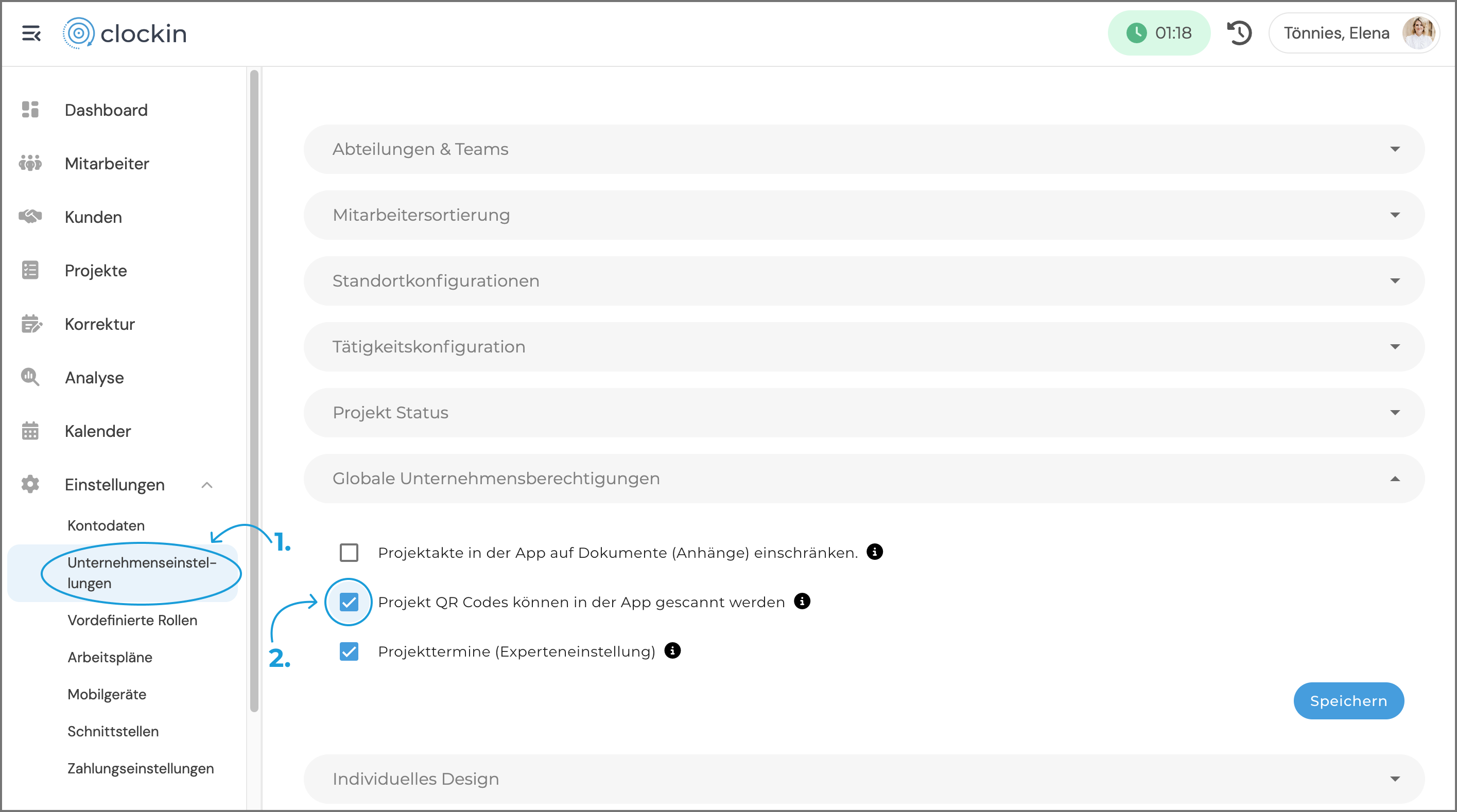
**Hinweis**: Beachte bitte, dass du die QR-Codes unter Umständen noch in den Unternehmenseinstellungen freischalten musst. Gehe dazu auf Einstellungen > Unternehmen > Globale Unternehmensberechtigung und wähle "Projekt QR Codes können in der App gescannt werden"
 {% endhint %}
Dadurch, dass auch Unterprojekte mit individuellen QR-Codes ausgestattet werden, kannst du beispielsweise an die verschiedenen Räume der Baustelle die jeweiligen QR-Codes hängen. So kannst du für jeden Raum den genauen Arbeitsaufwand nachhalten.
Die QR-Codes findest du direkt in den **Projektdaten** des jeweiligen Projektes unter "**QR-Code anzeigen""**

Stempelst du oder deine Mitarbeiter sich aus dem Projekt wieder aus, beachte bitte, dass die **Arbeitszeit regulär weiterläuft**. Damit die Arbeitszeit gestoppt wird, musst du dich noch mal manuell abmelden!
{% hint style="warning" %}
Es ist **wichtig**, dass jeder Mitarbeiter, der den QR-Code einscannt, auch dem **Projekt zugeordnet** ist! Ansonsten wird er sich nicht für das Projekt einstempeln können und wird die Fehlermeldung *Projekt ist unbekannt*auf seinem Smartphone erhalten.
{% endhint %}
Wenn du wissen möchtest, wie du Projekte anlegen kannst, klicke [hier](/projekt/projektplanung-basis/projekte-anlegen.md).
---
# Agent Instructions
This documentation is published with GitBook. GitBook is the documentation platform designed so that both humans and AI agents can read, navigate, and reason over technical content effectively. Learn more at gitbook.com.
## Querying This Documentation
If you need additional information that is not directly available in this page, you can query the documentation by asking a question.
Perform an HTTP GET request on the following URL with the `ask` and `goal` query parameters:
```
GET https://gitbook.clockin.de/projekt/zeiterfassung-app-bedienung/qr-codes-projekte.md?ask=&goal=
```
`ask` is the immediate question: it should be specific, self-contained, and written in natural language.
`goal` is what the user is ultimately trying to achieve, the reason they need the answer. Sharing it helps GitBook give you a better, more relevant answer. A goal is most helpful when it describes the outcome the user wants rather than restating the question. For example, with `ask=how do I create an API token`, a goal like `automate deployments from our CI pipeline` lets GitBook tailor the answer to that use case.
The response will contain a direct answer to the question and relevant excerpts and sources from the documentation.
Use this mechanism when the answer is not explicitly present in the current page, you need clarification or additional context, or you want to retrieve related documentation sections.
{% endhint %}
Dadurch, dass auch Unterprojekte mit individuellen QR-Codes ausgestattet werden, kannst du beispielsweise an die verschiedenen Räume der Baustelle die jeweiligen QR-Codes hängen. So kannst du für jeden Raum den genauen Arbeitsaufwand nachhalten.
Die QR-Codes findest du direkt in den **Projektdaten** des jeweiligen Projektes unter "**QR-Code anzeigen""**

Stempelst du oder deine Mitarbeiter sich aus dem Projekt wieder aus, beachte bitte, dass die **Arbeitszeit regulär weiterläuft**. Damit die Arbeitszeit gestoppt wird, musst du dich noch mal manuell abmelden!
{% hint style="warning" %}
Es ist **wichtig**, dass jeder Mitarbeiter, der den QR-Code einscannt, auch dem **Projekt zugeordnet** ist! Ansonsten wird er sich nicht für das Projekt einstempeln können und wird die Fehlermeldung *Projekt ist unbekannt*auf seinem Smartphone erhalten.
{% endhint %}
Wenn du wissen möchtest, wie du Projekte anlegen kannst, klicke [hier](/projekt/projektplanung-basis/projekte-anlegen.md).
---
# Agent Instructions
This documentation is published with GitBook. GitBook is the documentation platform designed so that both humans and AI agents can read, navigate, and reason over technical content effectively. Learn more at gitbook.com.
## Querying This Documentation
If you need additional information that is not directly available in this page, you can query the documentation by asking a question.
Perform an HTTP GET request on the following URL with the `ask` and `goal` query parameters:
```
GET https://gitbook.clockin.de/projekt/zeiterfassung-app-bedienung/qr-codes-projekte.md?ask=&goal=
```
`ask` is the immediate question: it should be specific, self-contained, and written in natural language.
`goal` is what the user is ultimately trying to achieve, the reason they need the answer. Sharing it helps GitBook give you a better, more relevant answer. A goal is most helpful when it describes the outcome the user wants rather than restating the question. For example, with `ask=how do I create an API token`, a goal like `automate deployments from our CI pipeline` lets GitBook tailor the answer to that use case.
The response will contain a direct answer to the question and relevant excerpts and sources from the documentation.
Use this mechanism when the answer is not explicitly present in the current page, you need clarification or additional context, or you want to retrieve related documentation sections.